Documentation Index
Fetch the complete documentation index at: https://docs.foxapi.cc/llms.txt
Use this file to discover all available pages before exploring further.
Overview
Codex CLI is OpenAI’s open-source command-line coding agent. It can read your codebase, propose changes, execute commands, and iterate based on feedback — all from the terminal. By pointing Codex CLI to FoxAPI, you can use it with any OpenAI-compatible model available through FoxAPI’s API.Codex CLI supports a
config.toml configuration file for defining custom model providers, making it easy to connect to FoxAPI without modifying environment variables for the base URL.Prerequisites
FoxAPI API Key
An active FoxAPI API key with access to OpenAI-compatible models. Go to FoxAPI →
Node.js 22+
Codex CLI requires Node.js version 22 or later. Download Node.js →
Installation & Configuration
Set Your API Key
Before configuring environment variables, go to the FoxAPI Console to create a dedicated key:
- Open the “API Keys” page and click “Create Key”.
- Name the key as you prefer for easy identification.
- Make sure to select the “Codex” group — this is the official channel for Codex CLI, ensuring OpenAI-compatible protocol support and adequate concurrency limits.
config.toml in the next step.Codex CLI reads the OPENAI_API_KEY environment variable for authentication. Set it to your FoxAPI API key:- CC-Switch (Recommended)
- macOS / Linux
- Windows (PowerShell)
CC-Switch can automatically write the environment variables required by Codex CLI: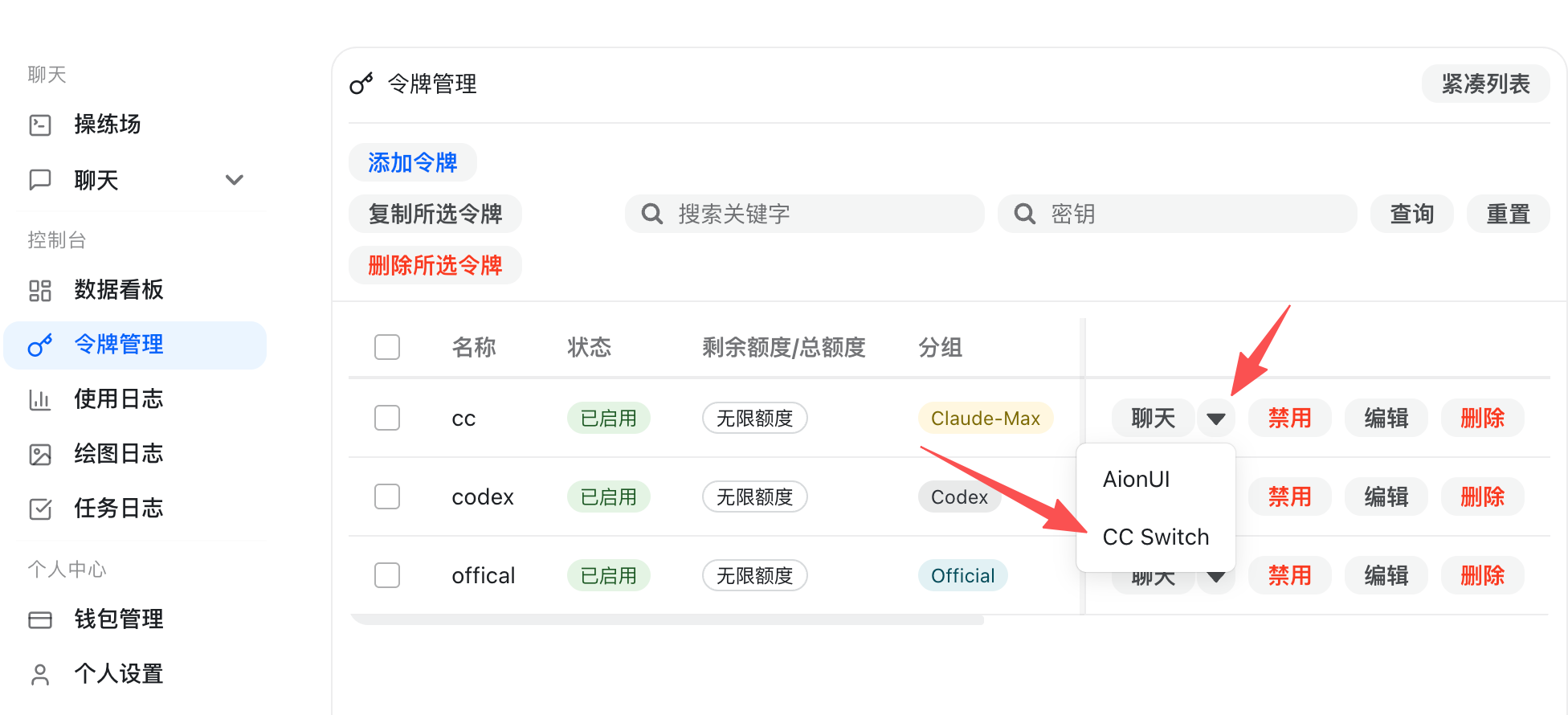 After import, CC-Switch will inject
- Download and install the latest CC-Switch package for your system.
- Import your key into CC-Switch using either method:
- One-click import (Recommended): In the FoxAPI Console’s key list, click the dropdown menu next to your key and select “CC Switch” — the configuration will be automatically imported into CC-Switch.
- Manual setup: Manually add a “Codex CLI” configuration in CC-Switch, set the Base URL to
https://api.foxapi.cc/v1, and enter your API Key.
After import, CC-Switch will inject OPENAI_API_KEY into your current shell session — no need to manually edit configuration files.Configure FoxAPI as a Model Provider
Create or edit the Codex CLI configuration file:Configuration fields explained:
- macOS / Linux
- Windows
Edit
~/.codex/config.toml:| Field | Description |
|---|---|
model | Default model to use (can be overridden with --model flag) |
model_reasoning_effort | Reasoning effort level: "low", "medium", or "high" |
model_provider | Name of the custom provider (must match the [model_providers.xxx] section) |
base_url | FoxAPI’s API endpoint |
env_key | Environment variable name that holds your API key |
wire_api | API protocol to use ("responses" is required) |
Verify the Connection
Test the connection with a simple prompt:Recommended Models
| Model | Best For |
|---|---|
gpt-4.1 | Complex multi-step coding tasks (recommended default) |
gpt-4o | General coding tasks with balanced speed and quality |
o4-mini | Fast, cost-effective coding assistance |
config.toml when launching Codex:
Troubleshooting
Error: 401 Unauthorized
Error: 401 Unauthorized
Error: Connection failed
Error: Connection failed
- Check that
base_urlinconfig.tomlis set tohttps://api.foxapi.cc/v1(with/v1). - Verify your network can reach
api.foxapi.cc.
Model not found
Model not found
- Confirm the model name is correct and available on FoxAPI.
- Check your FoxAPI account for model access permissions.
Config file not taking effect
Config file not taking effect
- Confirm the file is located at
~/.codex/config.toml(macOS/Linux) orC:\Users\{username}\.codex\config.toml(Windows). - Validate the TOML syntax — ensure strings are properly quoted and section headers use square brackets.
- Check that
model_providervalue matches the[model_providers.xxx]section name exactly.